If you've ever streamed music production, recorded a guitar cover for YouTube, or captured any DAW session in OBS, you've probably experienced this. The audio slowly drifts out of sync with the video over time. It starts fine, but by the end of a long recording, the desync is painfully obvious.
I've seen producers blame OBS settings, try different capture methods, mess with buffer sizes, and even buy new audio interfaces. None of it fixes the core problem, because the core problem isn't a setting. It's physics.
The Clock Mismatch Problem
Here's what's actually happening. Your audio interface has its own clock. OBS has access to your system clock. These two clocks are not the same, and they don't run at exactly the same speed.
When your DAW plays audio at 44.1kHz through your Focusrite or Apollo, it's counting samples based on the interface's internal oscillator. When OBS records, it's timestamping frames based on your computer's system clock. Over time, tiny differences between these clocks add up.
The Math Behind Audio Drift
- Clock accuracy: Most audio interfaces are accurate to ~50 ppm (parts per million)
- 50 ppm drift: That's 0.005%, sounds tiny, right?
- Over 1 hour: 0.005% × 3600 seconds = 0.18 seconds of drift
- Over 2 hours: Nearly half a second out of sync
This is why short recordings often seem fine. Record a 3-minute YouTube video and you might not notice the 10ms of drift. But stream for two hours and suddenly your audio is clearly behind your video.
Why Traditional Solutions Don't Work
The standard advice you'll find online usually falls into a few categories. None of them actually solve the clock problem.
"Adjust your buffer size"
Buffer size affects latency, the delay between when you play something and when you hear it. It doesn't affect clock drift. A smaller buffer means lower latency, but your interface clock and system clock will still drift apart at the same rate.
"Use a different capture method in OBS"
Window capture, game capture, display capture, these affect how OBS grabs your video frames. The audio routing is a separate issue. Changing capture method doesn't change the fundamental clock mismatch.
"Set a sync offset in OBS"
This is a band-aid. You can add a fixed delay to your audio in OBS settings, but drift isn't a fixed offset. It's cumulative. An offset that fixes the sync at the start of your stream will be wrong by the end, and an offset that fixes the end will be wrong at the start.
"Route through virtual audio cables"
Virtual audio cables like VoiceMeeter or VB-Cable route audio from one application to another. But they don't solve the clock problem, they just add another step in the chain. The drift still happens because you're still dealing with two different clock sources.
The Real Problem: You Need Synchronized Timestamps
The only way to truly fix DAW-to-OBS audio drift is to capture the audio in a way that's synchronized with the video capture. The audio samples need to be timestamped by the same clock that's timestamping your video frames.
This is what professional broadcast setups do. They use a master clock that everything references. Your home streaming setup doesn't have that, your audio interface and your computer are running on independent clocks.
The solution is to bypass the interface clock entirely for the recording. Let your interface handle the live monitoring (so you hear yourself in real-time with low latency), but capture the audio using the system clock that OBS is already using for video.
How StreamSync Solves This
We built a free plugin called StreamSync specifically for this problem. It sits on your master bus and routes audio directly to OBS using WASAPI, the Windows Audio Session API, which operates on your system clock.
How It Works
- Plugin on master bus: Captures your final DAW output
- WASAPI routing: Sends audio using system clock timestamps
- OBS receives: Audio that's synchronized with video capture
- Pass-through: Your monitoring stays unchanged, no added latency for you
The key insight is that WASAPI operates on the system clock, not your interface clock. When OBS captures from a WASAPI source, both the audio and video are timestamped by the same clock. No drift.
The Setup (Takes About 2 Minutes)
Here's how to get perfectly synced DAW audio in OBS:
Step 1: Install the Plugin
Download StreamSync and drop it in your VST3 folder. Restart your DAW.
Step 2: Add to Master Bus
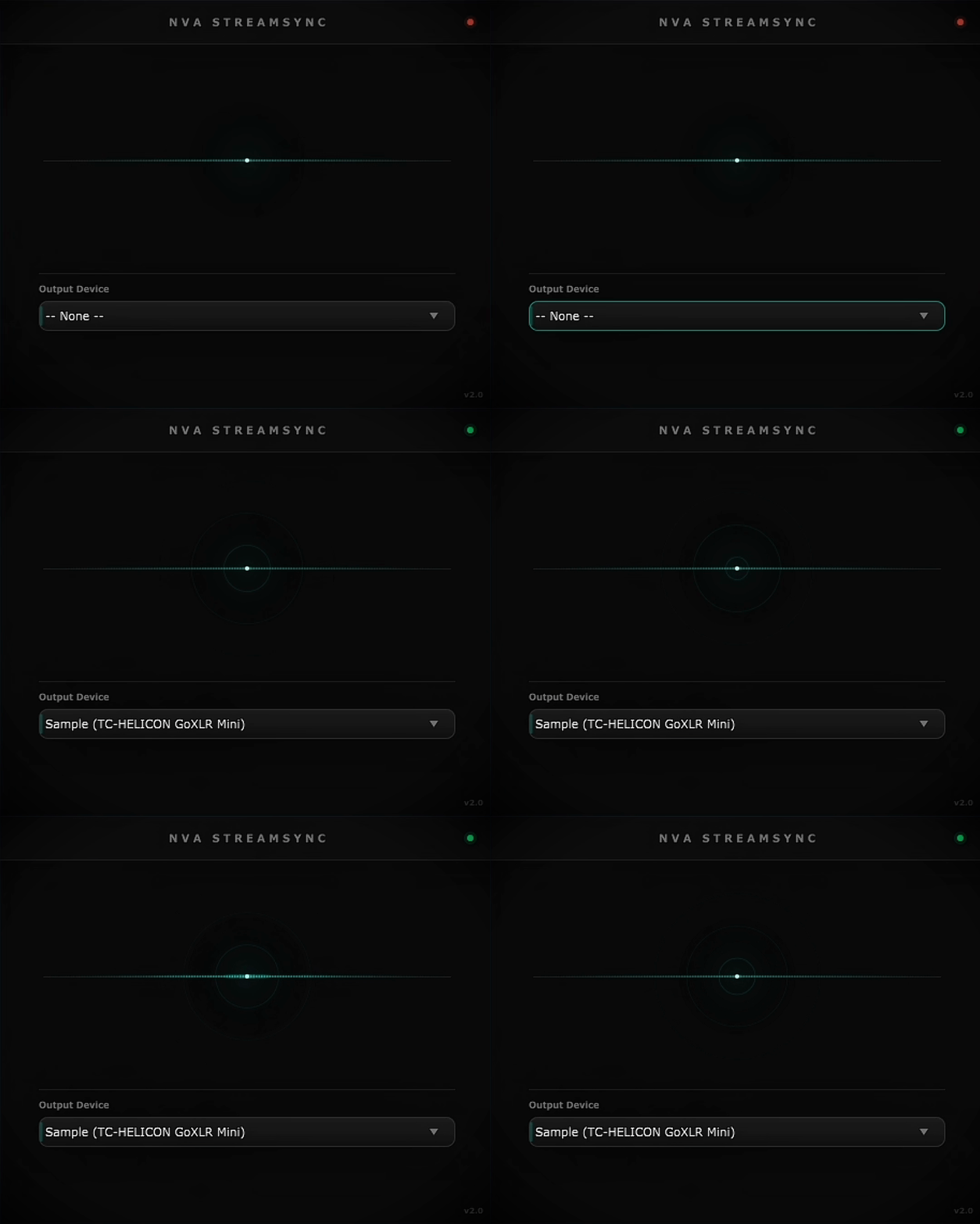
Load StreamSync as the last plugin on your master output. Select your output device from the dropdown, this creates the WASAPI routing.
Step 3: Configure OBS
In OBS, add an Audio Output Capture source and select the same device you chose in StreamSync. That's it.
Important: Make sure you're capturing the WASAPI output, not "Desktop Audio." Desktop Audio can still have clock issues. The Audio Output Capture source directly receives the synchronized stream from StreamSync.
Step 4: Check the Levels
StreamSync has a real-time waveform display so you can confirm audio is flowing. The status indicator shows green when connected to OBS.
Here's a quick video walkthrough of the entire setup:
Why This Matters for Music Streamers
If you're streaming gameplay or just chatting, slight audio drift is annoying but survivable. If you're streaming music production, it's a dealbreaker.
Consider what music streamers actually do:
- Beat-making streams: Viewers see you place a kick on the grid, but hear it late
- Guitar covers: Your strumming visually doesn't match the audio
- Live performances: Any desync destroys the illusion of a live performance
- Tutorial content: "Click here to add this effect" but the click and the effect are out of sync
For music content, sync isn't optional. Your viewers might not consciously notice 200ms of drift, but something will feel "off" about the whole video. It's the uncanny valley of audio.
What About Mac Users?
StreamSync is Windows-only because the WASAPI routing solution is specific to Windows audio architecture. Mac users have a different (and honestly, better) situation, Core Audio on macOS handles clock synchronization more gracefully, and tools like Loopback from Rogue Amoeba provide clean audio routing that doesn't suffer from the same drift issues.
If you're on Mac and experiencing drift, look into Loopback or BlackHole for audio routing. The underlying problem is the same, but the solutions are platform-specific.
Other Common Streaming Audio Issues
Since we're talking about DAW audio in OBS, here are some other issues I see content creators run into:
Crackling or dropouts
Usually a buffer size issue. Your interface buffer is too small for your system to handle reliably. Increase your buffer size until the crackling stops, 128 or 256 samples is usually stable for streaming.
Echo or feedback
You're capturing your audio twice, once from the DAW and once from Desktop Audio in OBS. Disable Desktop Audio if you're using a direct routing solution like StreamSync.
Audio too quiet in stream
Make sure your master bus is hitting a healthy level (averaging around -12dB to -6dB). StreamSync passes through your levels unchanged, so what you send is what OBS receives.
Audio distorted only in recording
Your master might be clipping. OBS captures the full signal, if you're hitting 0dBFS, you'll hear digital distortion in the recording even if your monitoring sounds fine (some interfaces have limiters on the output that hide clipping from you).
Download StreamSync Free
One-click setup for perfectly synced DAW audio in OBS. No configuration, no virtual cables, no drift.
Get StreamSyncThe Bottom Line
Audio drift in OBS recordings isn't a bug in your setup, it's an inherent problem with how digital audio clocks work. Your interface and your computer are running on independent timebases, and they will drift apart over time.
You can work around it by re-syncing audio in post (tedious), limiting your recordings to short clips (limiting), or accepting slightly-off audio (not great for music content).
Or you can route your audio through a system-clock-synchronized path and eliminate the problem entirely. That's what StreamSync does, and that's why we built it.
Happy streaming.